
When the WordPress administration interface loads incorrectly
Archived article with editorially revised content
After an update or plugin installation, the administration interface may appear unstyled or its buttons may stop working. Missing CSS or JavaScript resources are common causes, but server errors, permissions, incorrect URLs and caches may also be involved.
Find the failing request first
Check the console and network responses in browser developer tools. A 403, 404 or 500 response for load-scripts.php or another resource calls for a different investigation. Review server logs and test the latest plugin change in isolation. Clearing caches is a useful check, not a substitute for finding the cause.
A workaround and a real repair
Disabling CONCATENATE_SCRIPTS may help isolate some failures in combined resources. It is a diagnostic step rather than a universal fix. If an update is incomplete, restore core files from a verified package while preserving wp-content and your configuration. Keep a backup, then test login, editing and the public website after the repair.
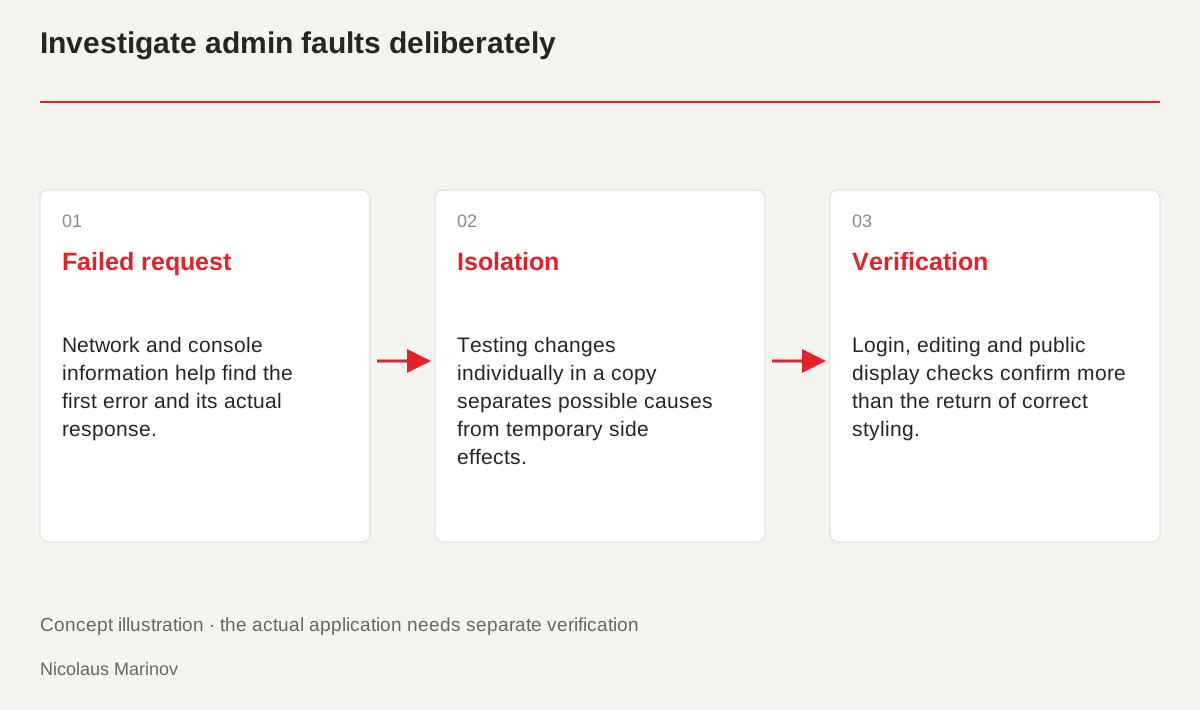
- Failed request: Network and console information help find the first error and its actual response.
- Isolation: Testing changes individually in a copy separates possible causes from temporary side effects.
- Verification: Login, editing and public display checks confirm more than the return of correct styling.
Start the investigation in the browser
Open developer tools and reload the admin page. Look for missing or failed resources in the network panel and JavaScript errors in the console. A 404 response may indicate a missing destination, 403 a restriction and 500 a server fault. The exact cause needs further investigation. Record the URL, status code and when the issue started. This is more useful than changing plugins at random based on a screenshot. The first failed request can trigger later errors, so their sequence may matter as much as the number of messages shown.

HTTP responses need different checks.
- 404: The requested resource was not found.
- 403: The server refused access.
- 500: A server error occurred; investigate the cause.
Reproduce changes in isolation
After an update, collect the affected versions and changes. Examine plugin and theme interactions in a test copy, preferably changing one variable at a time. Disabling every plugin on a live site may stop other features and should not be the first unsupported action. Browser, server and intermediate caches are separate layers. Even if clearing them helps, establish why the wrong resource reached the system. Otherwise the fault can return. A controlled comparison between working and failing states narrows the cause more reliably than several interventions performed together.
Use logs and temporary diagnostics carefully
Apply WordPress debugging tools according to official guidance and the environment. Put error details in logs rather than on public pages. Do not retain secret keys or unnecessary personal information there. Disabling script concatenation can help isolate a particular resource problem, but it should not become an undocumented permanent patch. Record its purpose and the condition for removing it. A temporarily usable admin page does not prove that the underlying cause is gone. Separate investigation tools from the final fix, then check the normal configuration again.
Verify the complete workflow afterwards
Test login, the media library, saving a post and the public site. Look for remaining failed requests or warnings. If core files were restored, separately confirm that original content, configuration and uploads remain intact. A prior backup should make recovery possible. Document the issue and solution clearly enough for another specialist to understand them. The aim is a working, maintainable system, not merely making an unstyled page disappear in the current browser. Final checks help ensure that a visible repair has not quietly introduced another problem elsewhere.